Alerts
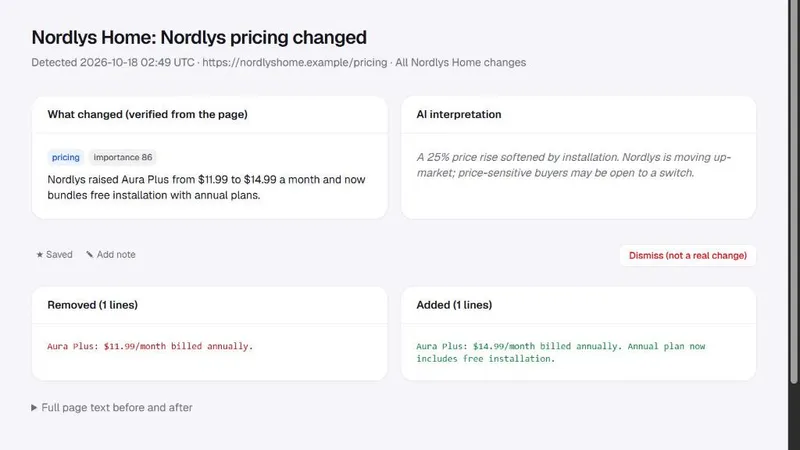
An alert is Spotlightrend saying "someone should look at this". Two things raise alerts: an article the AI marks as important with relevance at or above your threshold, and a competitor change with importance at or above your threshold. Both thresholds are 60 by default and live in Manage Account → Settings.
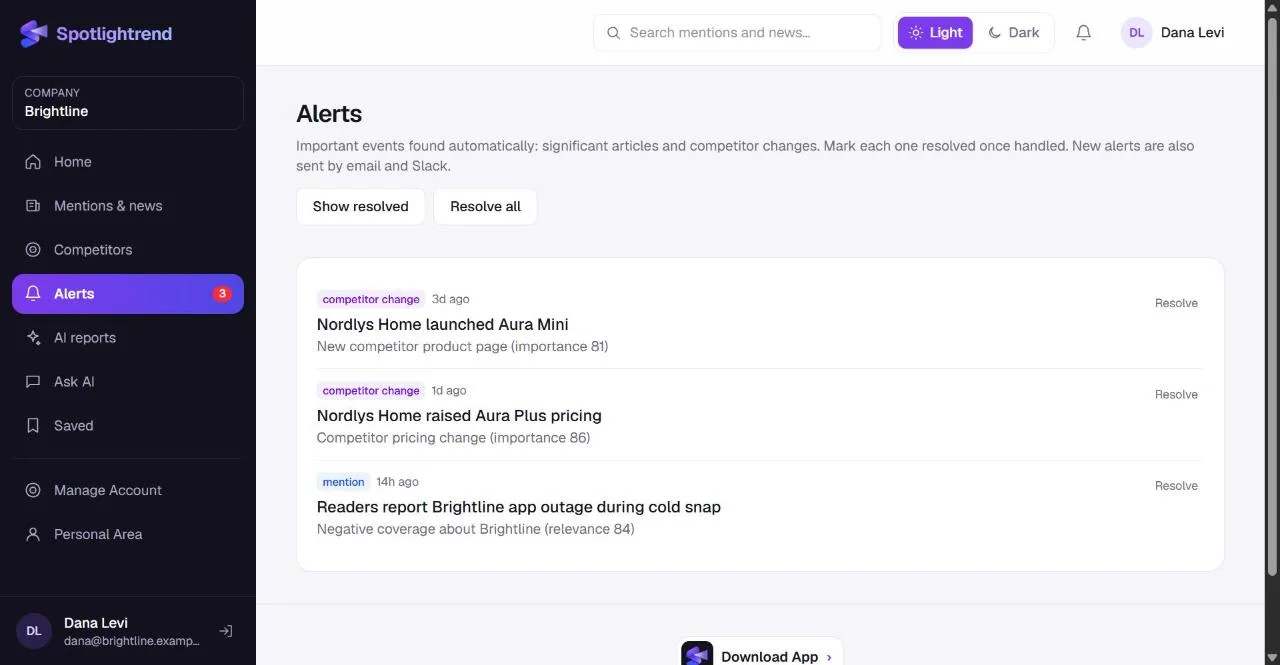
Open alerts are counted in red in the sidebar. Each one links to the article or change. Once handled, click Resolve. Resolve all is there for the morning after a busy day.
Alerts can also be sent to Slack. Connect Slack in Manage Account → Connections and choose a channel for mention alerts and one for competitor changes. Many teams send both to a single #market channel.
Send Report
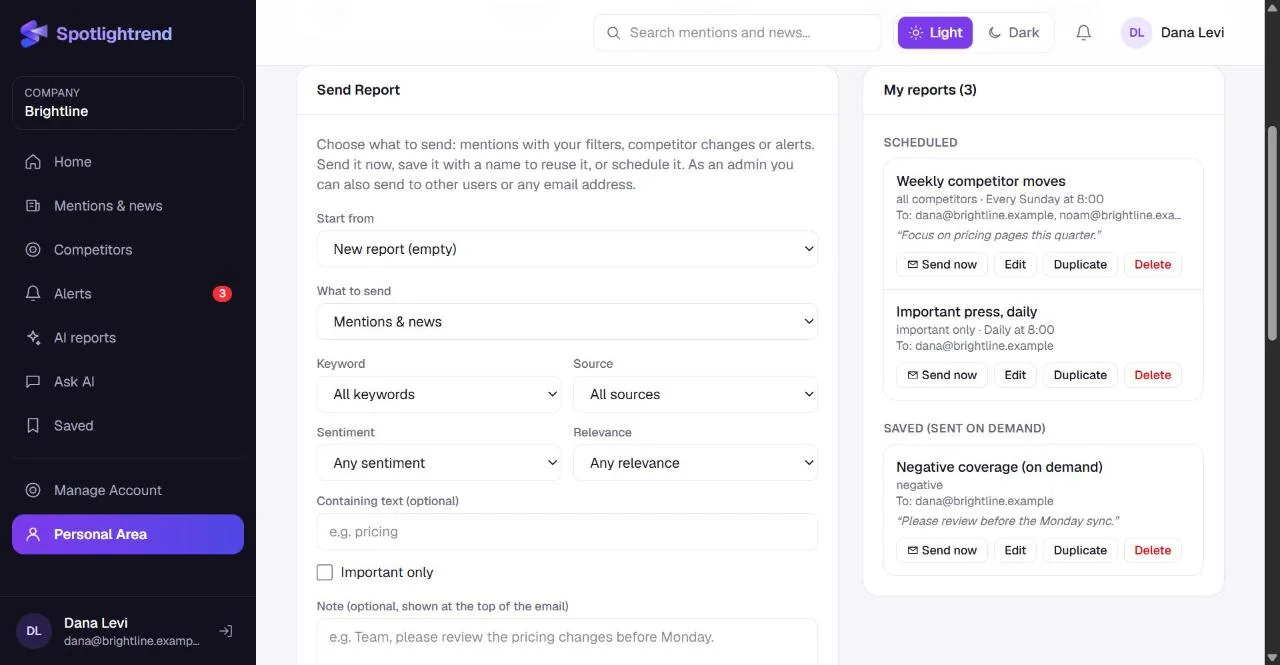
Send Report is in your Personal Area. It builds an email from Spotlightrend's data with the filters you choose, and you decide whether to send it once, save it, or schedule it.
- 1
Start from scratch or from a saved report
The form starts empty. If you've saved reports before, "Start from" fills the form with one of them as a new report, so you can adjust it without changing the original.
- 2
Choose what to send
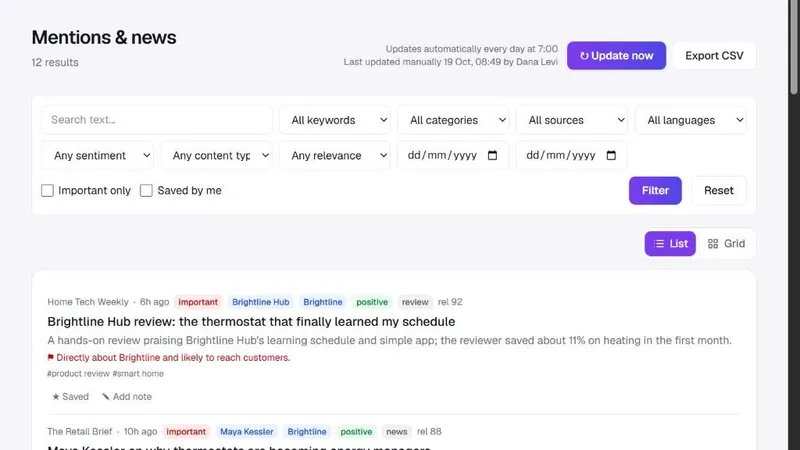
Mentions & news (with keyword, source, sentiment, relevance, text and important-only filters), competitor changes (one competitor or all, with or without minor changes), or alerts.
- 3
Add a note if you like
The note appears at the top of the email. It's handy for context: "Team, please review the pricing changes before Monday."
- 4
Decide on a schedule
Tick Send automatically to schedule it: right after each update, every day, every few days or once a week on a day you pick. Scheduled emails go out with the morning run and cover everything new since the last email. If there's nothing new, nothing is sent.
- 5
Pick recipients
By default it goes to you. Company admins and Account Editors can add colleagues or any email address, which is useful for an agency or a board member.
- 6
Send now, save, or both
Send now sends it once with the latest items. Save report keeps it under a name in My reports, scheduled or not.
My reports
Next to the form is the list of your reports, split into scheduled ones and saved ones that are sent only when you ask. Each has four actions: Send now, Edit, Duplicate and Delete. Duplicate asks for a new name and copies everything, which is the fastest way to make a variation, such as the same competitor report for a different team.
In the demo, Dana has a weekly competitor email that goes to herself and the product manager every Sunday, a daily email of important press, and a saved report of negative coverage she sends before the Monday meeting.
The daily update time
Everything above depends on when Spotlightrend collects new data. By default it runs once a day at 7:00 Israel time. A company admin or Account Editor can change the hour, or switch automatic updates off, in Manage Account → Settings.
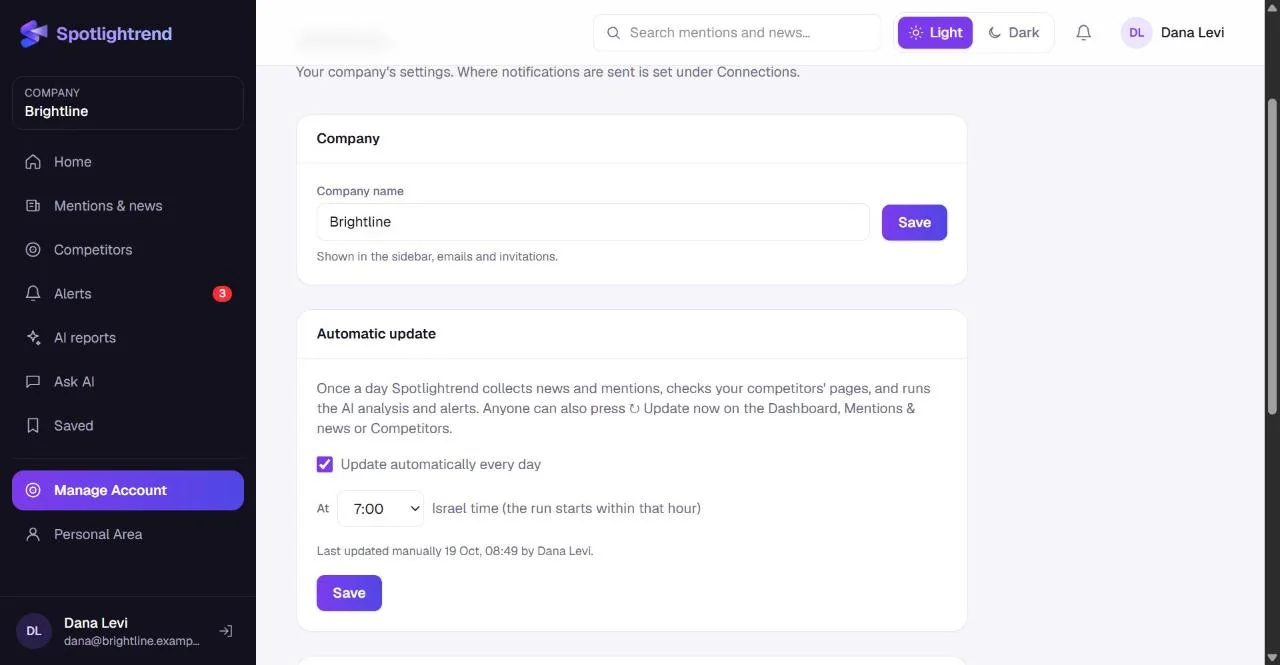
Pick an hour that ends before your team starts work, so the morning emails and the dashboard are ready. The run starts within the hour you choose. Anyone can still press Update now in between.
What a report email looks like
The subject says what the report is and how many new items it has, for example "Weekly competitor moves: 6 new". Your note comes first, then each item with its title as a link, a short line of context (the source and keywords, or the competitor page) and the AI summary. Long reports are cut at 40 items with a link to see the rest in Spotlightrend. At the bottom there's a link to manage your emails, so anyone can change what they get.
Choosing the alert thresholds
Both thresholds run from 0 to 100. Lower means more alerts, higher means fewer. A good way to tune them is to look at the alerts you resolved in the last two weeks without doing anything. If most of them scored between 60 and 70, raise the threshold to 70. If you found out about something important that never became an alert, open it, look at its score, and lower the threshold just below it. Small steps work better than big ones.
Slack, step by step
In Manage Account → Connections, connect Slack with a bot token from your workspace, then choose a channel for each type of message: mention alerts, competitor change alerts, and the daily and weekly summaries. Leave a channel empty to skip that type. The Test button sends a short message so you can confirm the bot can post there. If the bot can't see a private channel, invite it to that channel in Slack first.
A setup that works for most teams
- Alerts to one Slack channel that the marketing lead watches.
- A daily email of important mentions to the marketing lead.
- A weekly email of competitor changes to product and sales.
- A saved, unscheduled report of negative coverage for when leadership asks.
If an email feels too long, add a filter rather than making it less frequent. Relevance 60+ or important-only usually cuts it in half without losing anything that matters.
Email reports need email to be connected on the platform. If it isn't yet, you'll see a note in Send Report, and your reports are kept until it is.