What's in the list
Every article that matched one of your keywords appears here, newest first. Next to the title you see the source, how long ago it was published, the keywords it matched and the AI's reading: sentiment, content type (news, blog, review, press release, forum) and a relevance score from 0 to 100. Important articles are tagged, with a short reason.
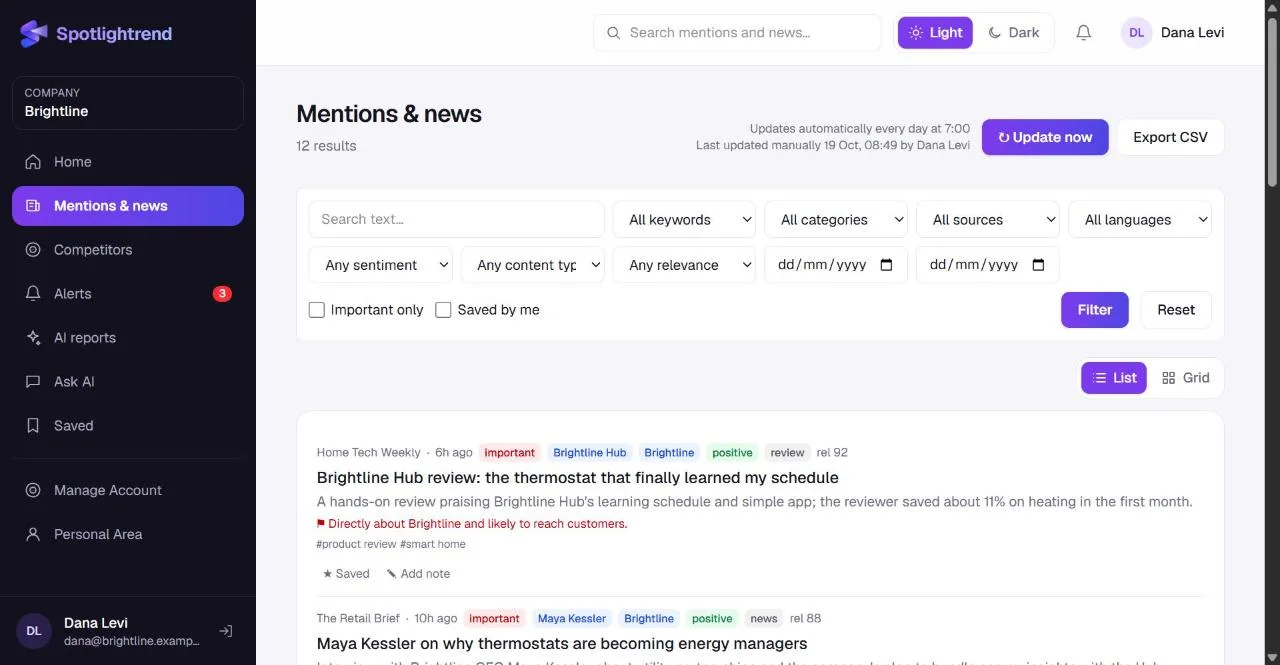
Under each title there's a one- or two-sentence summary. It's written by the AI from the article and is usually enough to decide whether to open it.
Filters that save the most time
- Search text: full-text search across titles, snippets and summaries. It matches whole words, so "Hub" won't match "GitHub".
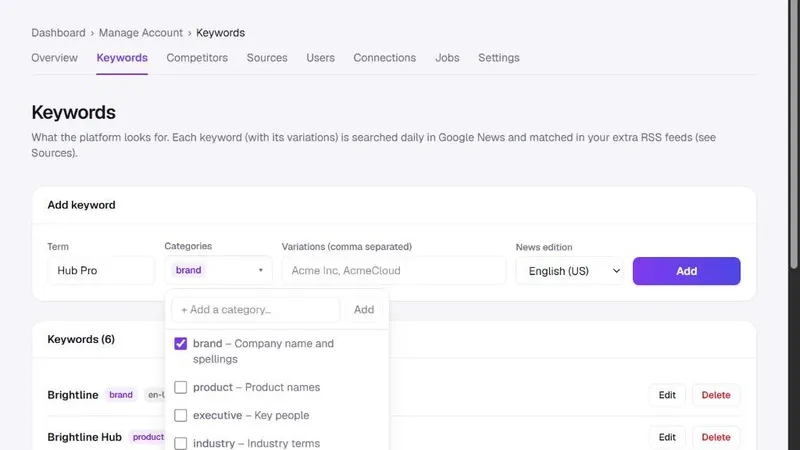
- Keyword and category: show only articles for one keyword, or for every keyword in a category. Custom categories work here too.
- Source: one publication or site.
- Sentiment and relevance: for example negative only, relevance 60 and up, which is a fast way to find what might need a response.
- Content type: reviews, press releases, forums and so on.
- Dates: a from and to date for reports and retrospectives.
- Important only and Saved by me: two checkboxes that shrink the list to what matters.
Filters are kept in the address bar, so you can bookmark a view or paste it to a colleague. "Negative, relevance 60+, last 7 days" is a link worth keeping.
List or grid
The List view is compact and best for scanning. Grid shows each article as a card with its featured image, which works well on a big screen or when you're presenting coverage to someone. Your choice is remembered, and the same switch is on the dashboard.
Save and add notes
Two small buttons sit under every article. Save puts it in your Saved page, which is personal. Add note attaches a short note that your whole company can see, which is how teams hand things off without a separate thread. In the demo, the support lead left a note on the outage article asking for the status page to mention that thermostats kept working locally.
How relevance and importance work
Relevance is the AI's estimate of how much an article matters to your company, based on your keywords and their categories. An article that names your brand in the headline scores high. One that mentions your industry in passing scores low.
Important is a separate flag. The AI marks an article important when it's likely to affect your reputation, your customers or your plans: a major review, a partnership, an outage, a competitor's big move. Important articles with relevance above your threshold become alerts.
Neither score is perfect. If you see a pattern you disagree with, for example every press release from one site scored too high, the keyword setup is usually the cause. More specific keywords give more accurate scores.
Exporting
Export CSV downloads the current view with all its filters applied: date, title, link, source, competitor, keywords, sentiment, type, relevance, important flag, topics and the AI summary. It opens directly in Excel or Google Sheets. Teams use it for monthly coverage reports and to share a list with an agency.
Updating on demand
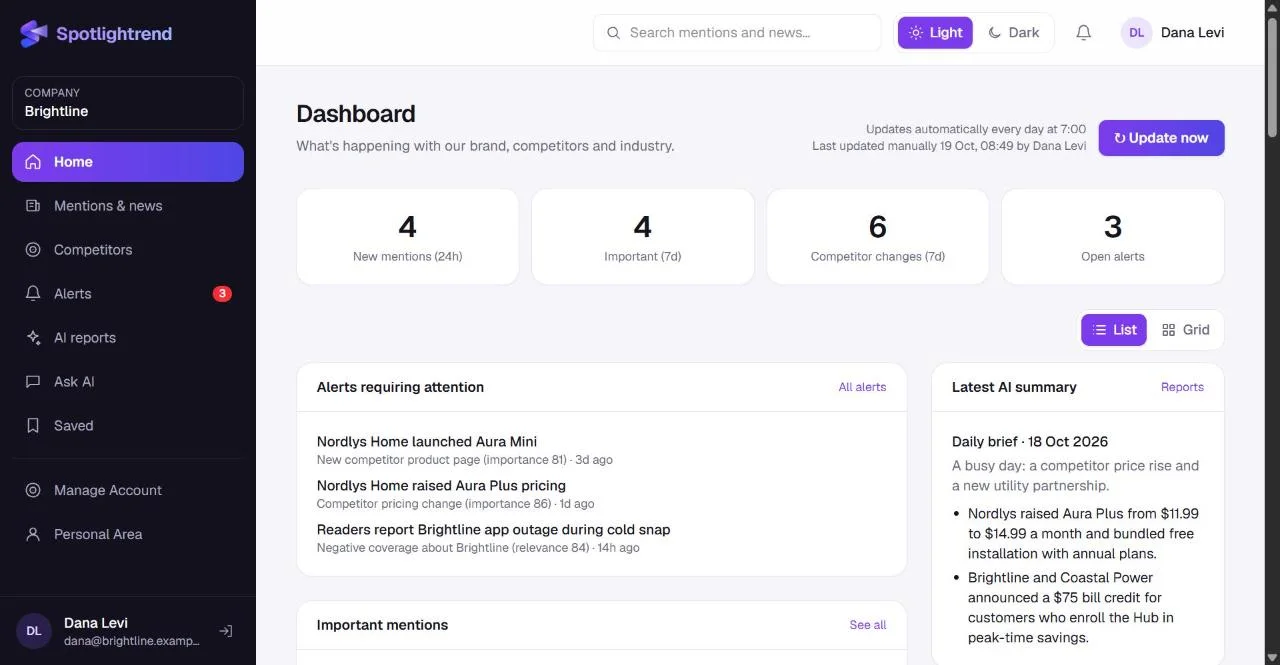
Collection runs automatically once a day at the time your admin chose. If something just happened, press Update now. It collects news and checks competitor pages in one go, which usually takes one to three minutes, and then the list refreshes. Next to the button you can see when it was last pressed and by whom, so two people don't run it at the same time for nothing.
A five-minute morning routine
Here's how the marketing lead in our demo account reads Mentions & news each morning. First, Important only, to see what the AI flagged since yesterday. Each one gets a decision: save it, add a note for someone, or ignore it. Then a quick look at negative sentiment with relevance 60 and up, because those are the ones that might need a reply. Finally, a scroll through everything else in List view, reading only the summaries. On a normal day that's five minutes. On a launch day it's longer, but it's still faster than opening each article.
Sharing an article with a colleague
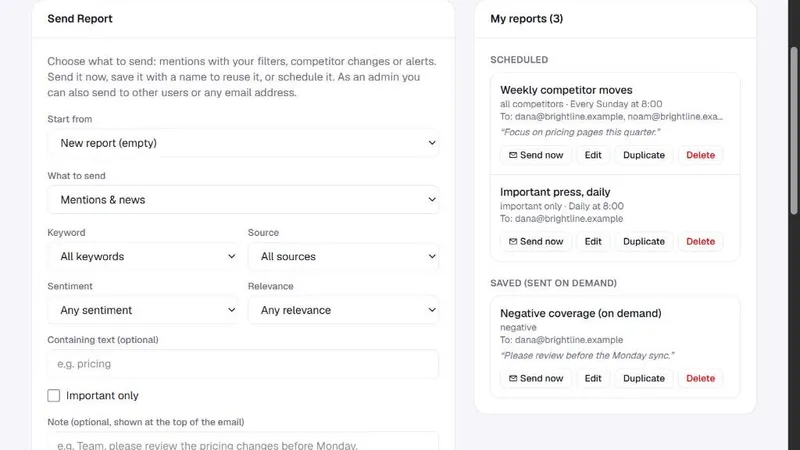
The quickest way is a note: write "Noam, worth a look before Thursday" on the article, and it's there for anyone in the company who opens it. If you want to send a whole view, copy the address of the filtered list. And if the colleague doesn't use Spotlightrend, open the original article with the title link and share that, or put it in a saved report and press Send now.
Finding something from months ago
Everything collected stays searchable for as long as your account is active. When someone asks "didn't we get a review in that magazine last spring?", type the publication in the source filter, set the dates and you have it. Search by text works for quotes too: a distinctive phrase from the article usually finds it straight away.
Use the category filter with a custom category for a running theme, like "Utilities" for every article about utility programs. It's quicker than remembering which keywords belong to it.
Next
Reading the list every day isn't the goal. Set up alerts and reports so the important things come to you, and come back to Mentions & news when you need the detail.