Add a competitor
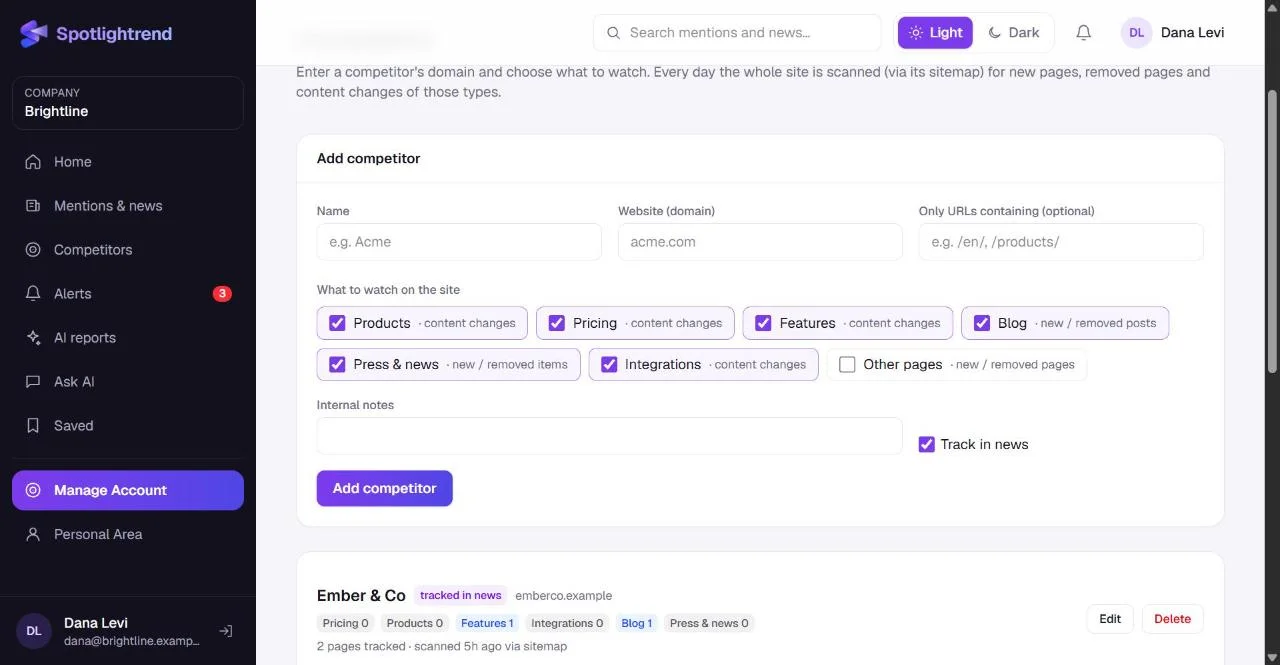
Go to Manage Account → Competitors. You only need two things: the company's name and its website domain.
- 1
Enter the name and domain
The name is how the competitor appears everywhere in Spotlightrend. The domain is the website to scan, for example nordlyshome.com. You don't need to include https.
- 2
Choose what to watch
Products, pricing, features and integrations pages are compared day to day, so you see exact text changes. Blog and press pages are tracked for new and removed posts. "Other pages" catches everything else, which is usually noisy, so it's off by default.
- 3
Limit large sites if needed
Some companies have thousands of pages in many languages. Use "Only URLs containing" to keep the scan focused, for example /en/ for the English site, or /thermostats/ for one product line.
- 4
Decide on news tracking
With Track in news on, the competitor's name is also searched in the news, and those articles appear in Mentions & news and on the competitor's page.
- 5
Save
Spotlightrend reads the site map right away and builds the list of pages. This first scan is silent: it's the baseline, so you won't get a hundred "new page" alerts on day one.
What happens every day
Each update reads the competitor's site map, or its homepage links if there's no site map, and classifies every URL by type. New pages of the types you chose appear as new pages. Pages that disappear appear as removed. For pricing, product, feature and integration pages, the text is compared with the previous day, and any meaningful difference becomes a change.
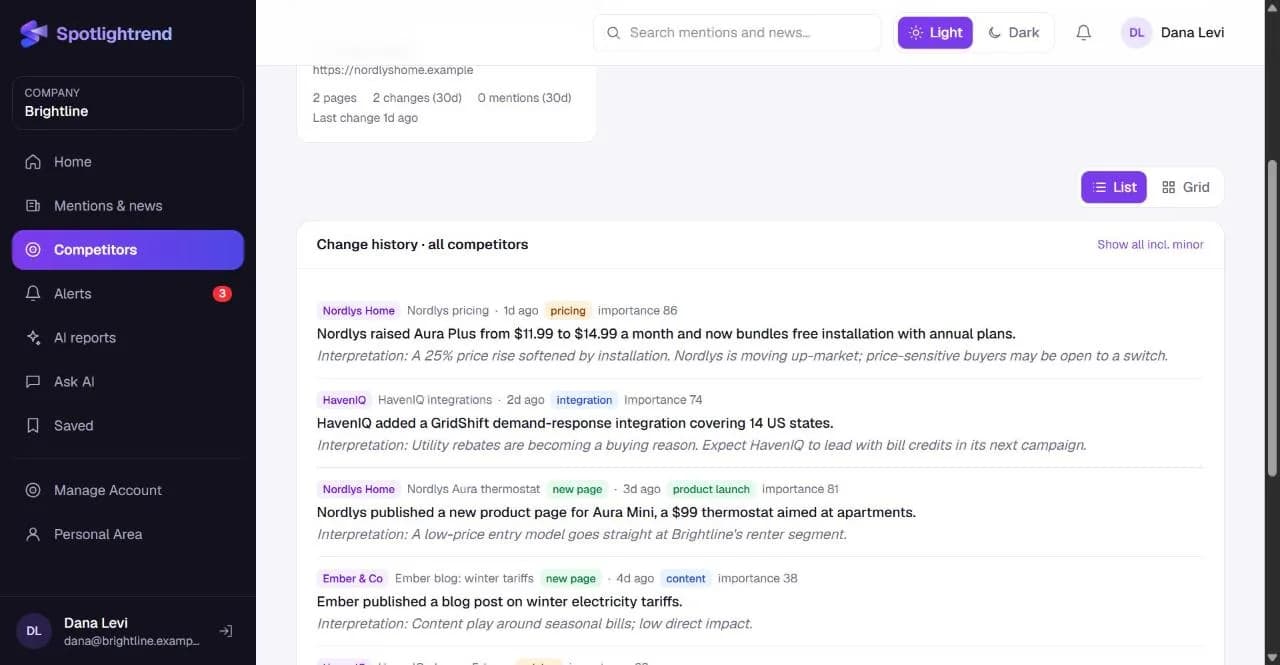
The AI then reads each change and gives it a type (pricing, feature, product launch, integration, positioning, content or minor), an importance score from 0 to 100, a one-line summary and a short interpretation.
Reading a change
Open any change to see the detail. On the left is what changed, verified from the page: the summary, the change type and the importance score. On the right is the AI's interpretation. Below that are the removed lines in red and the added lines in green, taken directly from the page, and the full text before and after if you want the context.
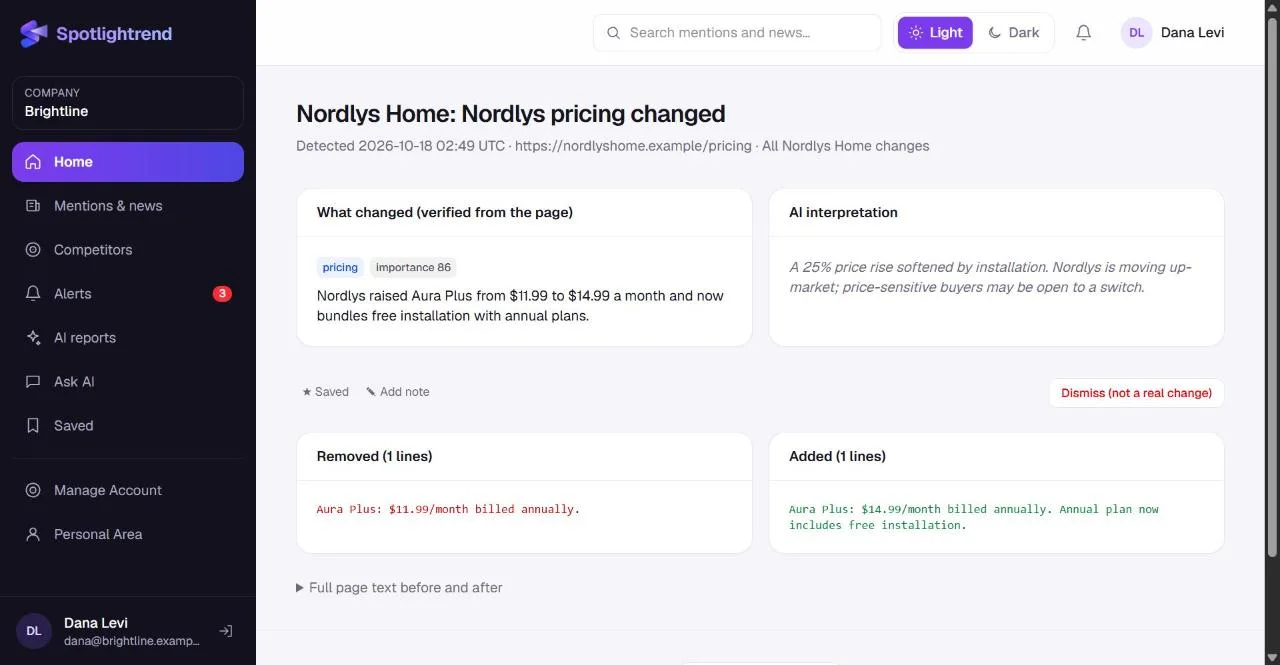
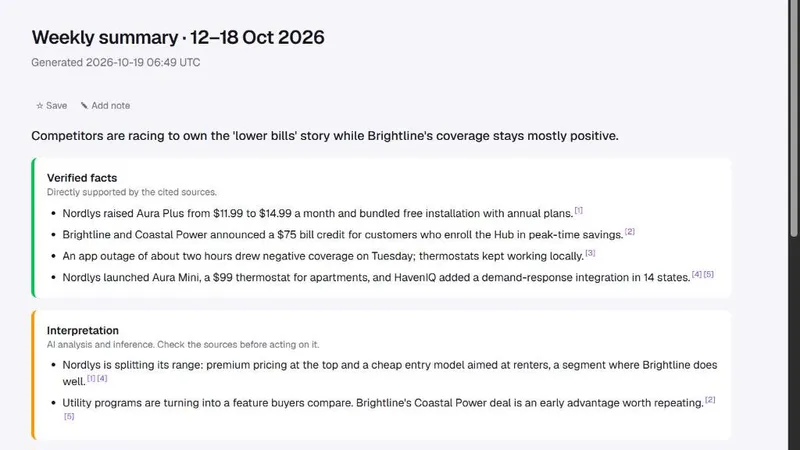
In the demo, Nordlys Home's pricing page went from "$11.99/month" to "$14.99/month" with free installation added to annual plans. The interpretation reads it as a move up-market. That's a reasonable reading, but it's still a reading, which is why it sits in its own box.
When a change isn't real
Websites change for boring reasons too: a cookie banner, a rotating testimonial, a date in the footer. Spotlightrend ignores most of this, but some slips through. If you see a change that isn't real, click Dismiss on the change page. It disappears from lists and reports and stops counting toward alerts.
If one page keeps producing false changes, edit the competitor and turn off that page type, or add the page by hand with a CSS selector that limits the comparison to the part you care about, such as the pricing table.
Alerts for competitor changes
A change becomes an alert when its importance is at least the threshold set in Manage Account → Settings (60 by default). In the demo, the pricing change scored 86 and the new apartment model scored 81, so both raised alerts. The blog post about winter tariffs scored 38 and didn't. If you're getting too many alerts, raise the threshold. If you're missing things, lower it.
Adding a page by hand
Sometimes the page you care about isn't in a site map, or it's on a different domain, like a pricing calculator on a subdomain or a product page on a marketplace. You can add it by hand to any competitor: paste the URL, give it a label and choose its type. If only part of the page matters, add a CSS selector, for example the class of the pricing table, and only that part is compared. Manually added pages are checked every day like the others.
What the daily check can and can't see
Spotlightrend reads public pages the way a visitor's browser would see the text. It doesn't log in, so prices shown only after sign-up won't be tracked. Very large sites are checked in rounds: up to 60 page fetches per run, oldest first, so every watched page is covered over a few days and the pages that changed recently are checked sooner. Images and design changes aren't compared, only text, which is usually where the meaningful changes are.
How many competitors to track
Most teams track between three and ten. Your plan sets the limit. More isn't always better: every competitor adds changes to read. Start with the companies your prospects actually compare you with, then add the next ring once you know how much you're getting.
Check a competitor's page list a day after adding it. If it found far more pages than you expected, add a URL filter so the scan stays focused on the part of the site that matters to you.
Getting the changes to the team
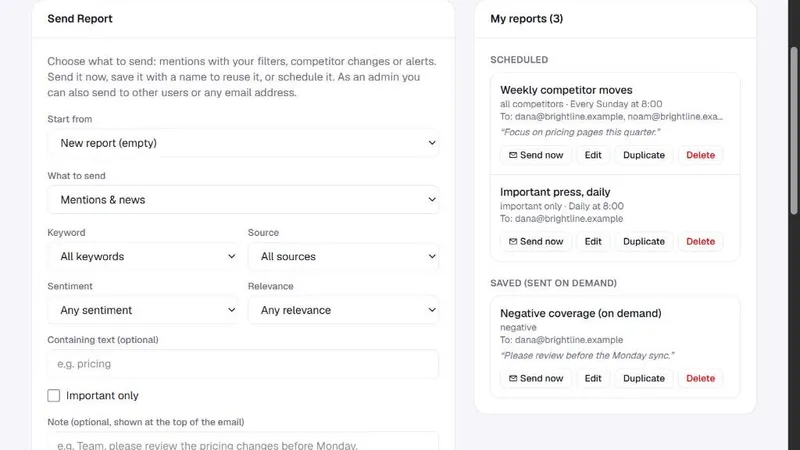
Competitor changes can go to a Slack channel of their own, set up in Manage Account → Connections. They can also be emailed: in your Personal Area, create a report for competitor changes, choose a competitor or all of them, and pick how often it goes out. Many teams send a weekly competitor email to sales every Monday morning.