The three roles
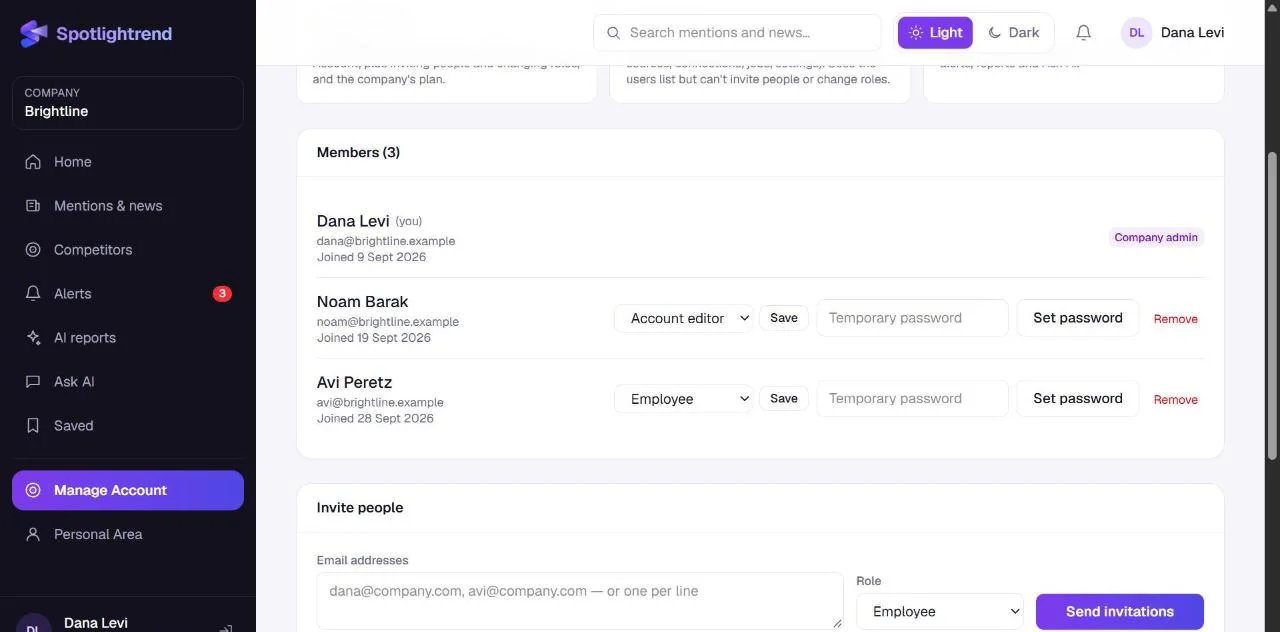
- Company admin: one per company. Everything in Manage Account, plus inviting and removing people, changing their roles, and the company's plan and payments.
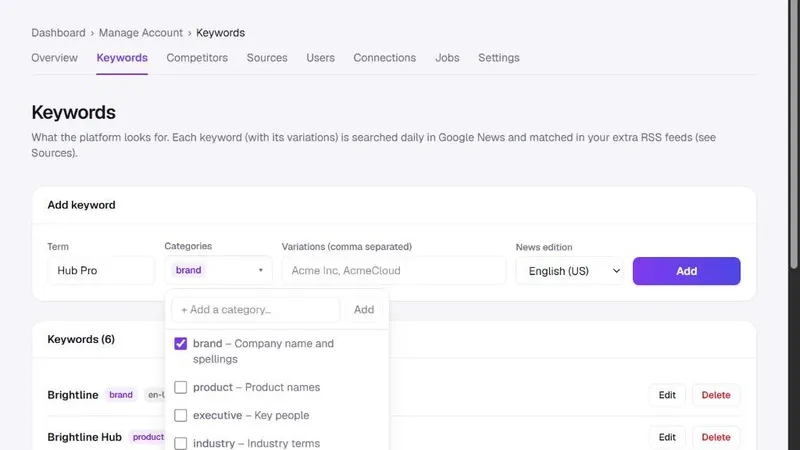
- Account Editor: manages the setup, which means keywords, competitors, sources, connections, the update schedule and settings. Can see the list of users and their roles but can't invite people or change roles.
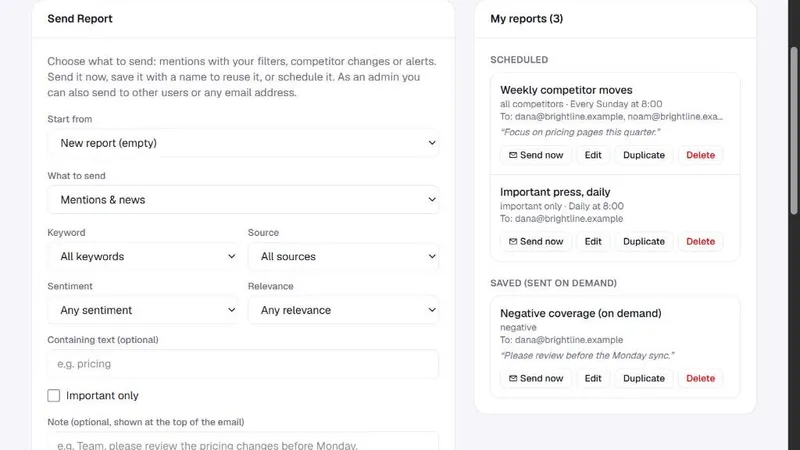
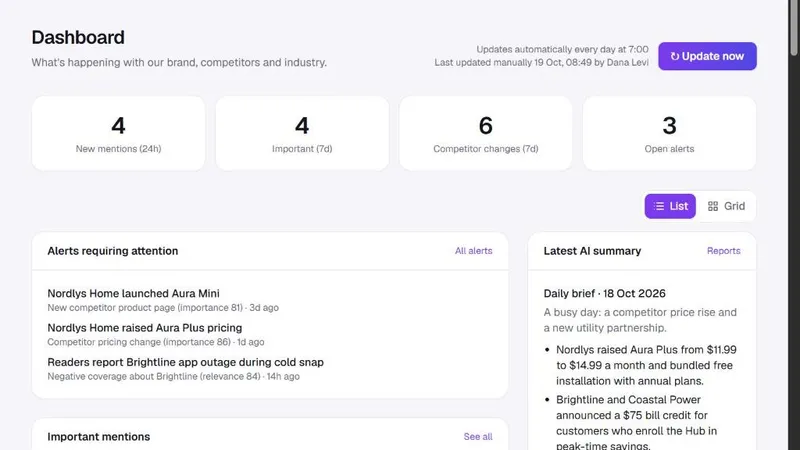
- Employee: uses the app. Dashboard, mentions, competitors, alerts, AI reports and Ask AI, plus their own Personal Area.
There is always exactly one company admin. Usually it's the person who signed up and paid. The admin can make anyone else an Account Editor or an Employee, as many as the plan allows.
Inviting people
- 1
Open Manage Account → Users
Only the company admin sees the invite form. Account Editors see the same page in read-only mode.
- 2
Paste email addresses
One or many, separated by commas or new lines.
- 3
Choose a role
Employee or Account Editor. You can change it later.
- 4
Send invitations
Each person gets an email with a link to set their password and join. The link is valid for 24 hours.
Until someone opens the company for the first time, they appear under Pending invitations with who invited them and when. From there you can resend the invitation, change the role before they join, set a temporary password, or cancel the invitation.
Once they've signed in, they move to Members with the date they joined.
Which role to give whom
A simple rule: give Account Editor to the people who will change the setup, and Employee to everyone else. In the demo, the product manager is an Account Editor because he maintains the competitor list. The sales manager is an Employee because she reads the weekly email and the dashboard but never needs to add a keyword.
Don't make everyone an Account Editor "just in case". Every keyword and competitor affects what the whole team sees, and it helps to know who changes them.
Company settings
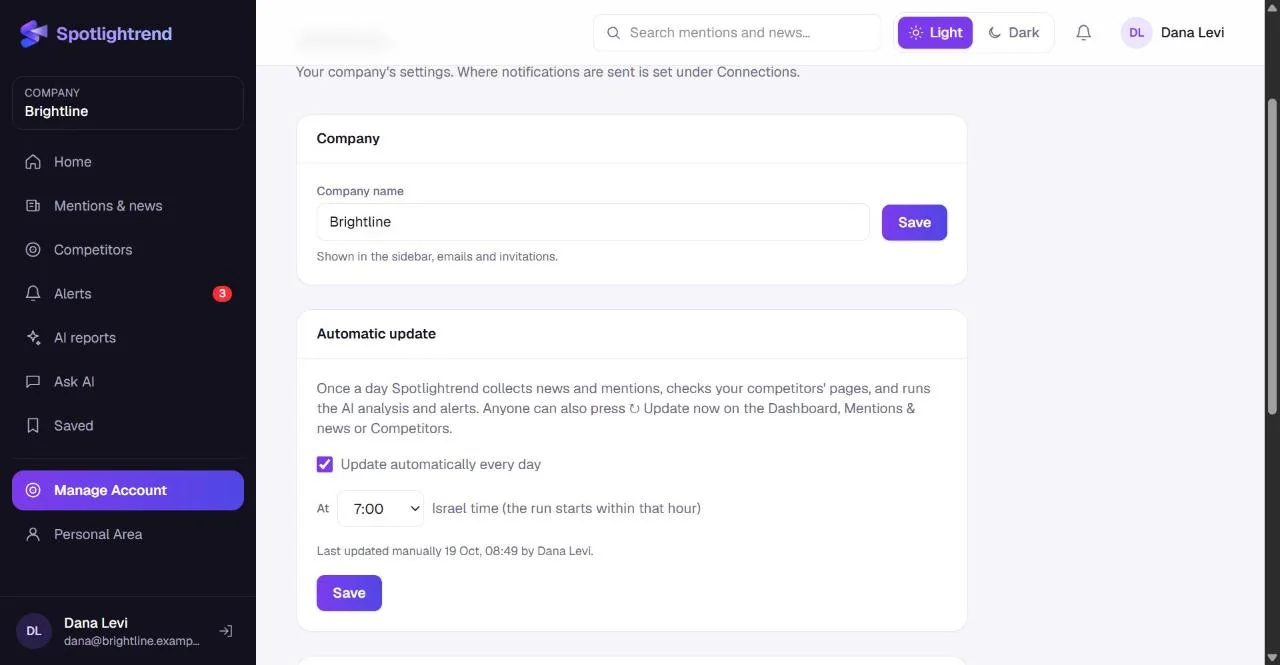
Manage Account → Settings holds the company name (shown in the sidebar, emails and invitations), the time of the daily automatic update and the alert thresholds. The company admin and Account Editors can change all of them.
Plans
Each plan sets how many users, keywords, competitors and RSS feeds you can have, and whether AI features are included. Plans are paid for 6 or 12 months at a time and don't renew automatically. Your Personal Area shows the current plan, how much of each limit you use and when it ends.
When you're close to a limit, adding more shows a clear message with a link to upgrade. The company admin changes the plan from Change / Update Plan in the account menu. The new plan applies right away, and the new term starts after the current one ends, so you never lose paid days.
Before a plan ends, the company admin gets reminder emails. If it ends without renewal, there's a seven-day grace period, and then access is paused until the plan is renewed. Nothing you set up is deleted.
One person, several companies
If you work with more than one company, for example at an agency, you can belong to several. Switch between them from the company box at the top of the sidebar. Each company has its own data, users and plan.
A first-week checklist for the company admin
- Add your brand, product and executive keywords, and two or three industry terms.
- Add the three competitors your prospects mention most.
- Set the daily update time to an hour before your team starts work.
- Connect Slack and choose an alerts channel.
- Invite one Account Editor who will help maintain the setup.
- After a few days, invite the people who will read the results, and set up a weekly email for them.
- Check the alert thresholds after the first week and adjust them.
What everyone controls for themselves
Some things don't depend on the role at all. Every person has a Personal Area where they set their display name and password, see the company's plan, and build their own email reports: what to receive, how often and with which filters. Employees can only send reports to themselves; company admins and Account Editors can add other recipients. Each person also has their own Saved list and their own Ask AI history, while notes on articles are shared with the whole company.
Notifications work the same way. The bell at the top of every page shows things that concern you personally, like a reply from Spotlightrend support or a reminder about your plan, and the Notification Center keeps the full history.
When someone leaves
Open Manage Account → Users and click Remove next to their name. They lose access to the company immediately. Their account itself stays, in case they belong to other companies, and the notes they wrote stay with the articles. If they had scheduled reports going to other people, those stop, so it's worth checking whether anyone relied on one and recreating it from your own Personal Area.
If the company admin is leaving, contact us before they go. Changing the company admin is done by Spotlightrend, so the company is never left without one.
On your phone
Spotlightrend works in any mobile browser, and you can install it on your home screen like an app. Use the Download App link at the bottom of any page for the steps on iPhone, Android and desktop.